You use streaming platforms to watch movies and series, but their layout is carefully planned.
Content is organized to help you find titles faster and guide your viewing choices.
This article explains how streaming platforms organize their content and why that structure matters.
Categories and Genre Grouping
Streaming platforms use categories and genres to organize large libraries. You see the main labels first, then short notes that explain what each group includes.
- Primary Genres — Big buckets like drama, comedy, action, and documentary.
- Subgenres — Narrower themes or tones, such as crime drama or romantic comedy.
- Hybrid Collections — Mixed labels that blend styles to match how you browse.
- Trending Sets — Category rows built around what is popular right now.
- Regional & Language Groups — Shelves organized by country, language, or local audience.
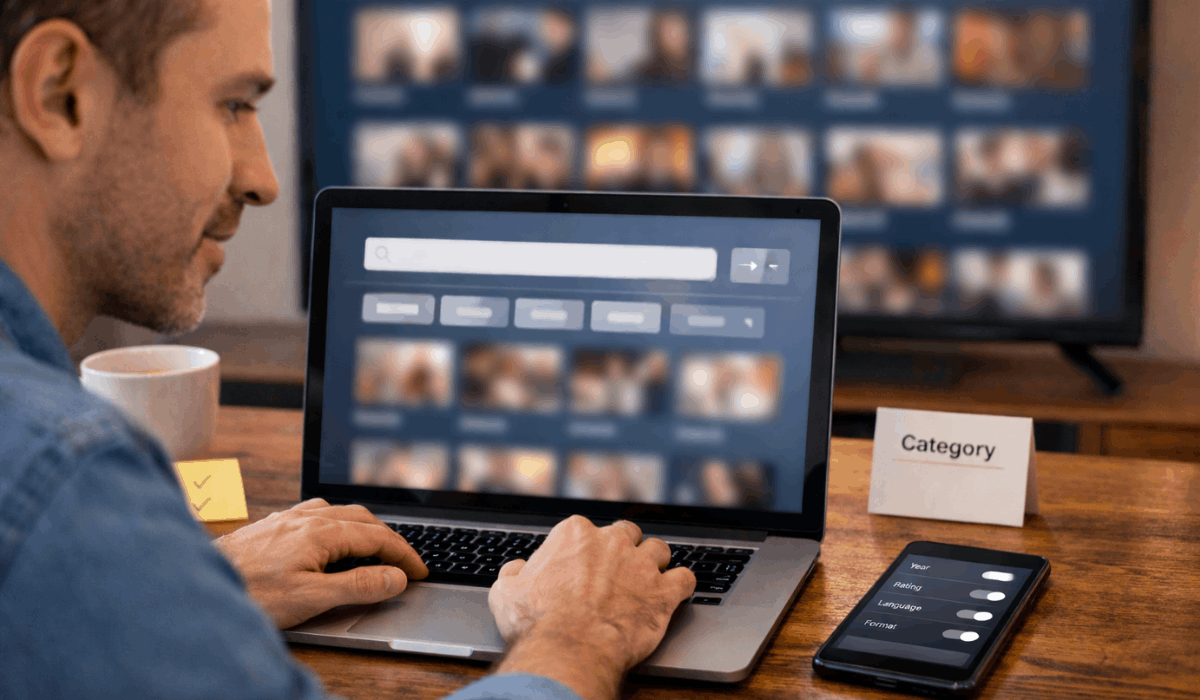
Algorithms and Personalized Rows
Streaming platforms use algorithms to adjust what you see on the home screen.
These systems learn from your activity and rearrange rows to match your viewing habits.
- Watch History — Titles are suggested based on what you watched and finished.
- Viewing Behavior — Pauses, skips, and replays influence future rows.
- Similar Audience Patterns — Recommendations reflect the choices of viewers with similar habits.
- Recent Activity — New rows appear after short-term viewing changes.
- Feedback Signals — Likes, ratings, and hides refine future suggestions.
Series Structure and Episode Order
Streaming platforms organize series to help you follow the story without confusion.
Clear episode order and season structure support continuous and correct viewing.
- Season Grouping — Episodes are grouped by season and displayed together.
- Episode Sequence — Episodes appear in their intended viewing order.
- Special Episodes — Extras and holiday episodes are placed outside the main sequence.
- Resume Position — The platform remembers where you stopped watching.
- Auto-Play Logic — The next episode starts automatically after one ends.
Franchises, Universes, and Timelines
Some platforms group related titles so you can follow big story worlds without having to guess the right order.
- Franchise Hubs — One page that gathers movies, seasons, and extras from the same brand.
- Timeline Order — An option to sort titles by story chronology, not release date.
- Spin-off Grouping — Spin-offs are shown alongside the main series to maintain context.
- Canon vs Standalone — Separate shelves for core story titles versus optional side stories.
- Viewing Guides — Built-in guides that suggest a watch order for new viewers.
Content Labels and Metadata
Platforms add labels so you can quickly judge a title. Metadata also powers search, filters, and recommendations.
- Age Ratings — Rating badges and warnings that flag mature themes.
- Runtime & Format — Quick info like episode length, film length, or limited series.
- Language Options — Audio language and subtitle availability are shown before playback.
- Quality Tags — Labels for resolution and audio features, such as surround sound.
- Release & Popularity — Year markers and popularity signals that affect discovery.
Search, Filters, and Navigation Tools
Navigation tools help you find what you want with fewer clicks. They also support targeted browsing when you already know what you want.
- Keyword Search — Results based on title names, cast, and related terms.
- Filters — Narrow by genre, year, rating, language, or format.
- Sorting Options — Order results by newest, most popular, or trending.
- Cast & Creator Links — Clickable pages for actors, directors, and creators.
- Cross-Device Sync — Consistent layout and results on TV, phone, and web.
Editorial Curation and Featured Sections
Not everything is automated. Human-curated shelves push certain titles to the front and shape what gets attention.
- Featured Banners — Big homepage placements for priority titles.
- Weekly Highlights — Rotating picks that refresh discovery without searching.
- Event Collections — Shelves tied to holidays, premieres, or special themes.
- Award Groupings — Rows based on nominations, wins, or festival picks.
- New Release Showcases — Dedicated shelves for newly added titles.
“Continue Watching” and Progress Tracking
Platforms use progress data to keep your spot. This feature reduces drop-offs and speeds up repeat viewing.
- Resume Points — Your exact stop point is saved for every device.
- Next-Up Prompts — Auto-advance cues that push the next episode.
- Unfinished Priority — Partially watched titles are placed higher on the home screen.
- Progress Bars — Visual indicators that help you decide what to finish.
- Restart Controls — Options to reset progress for rewatches.
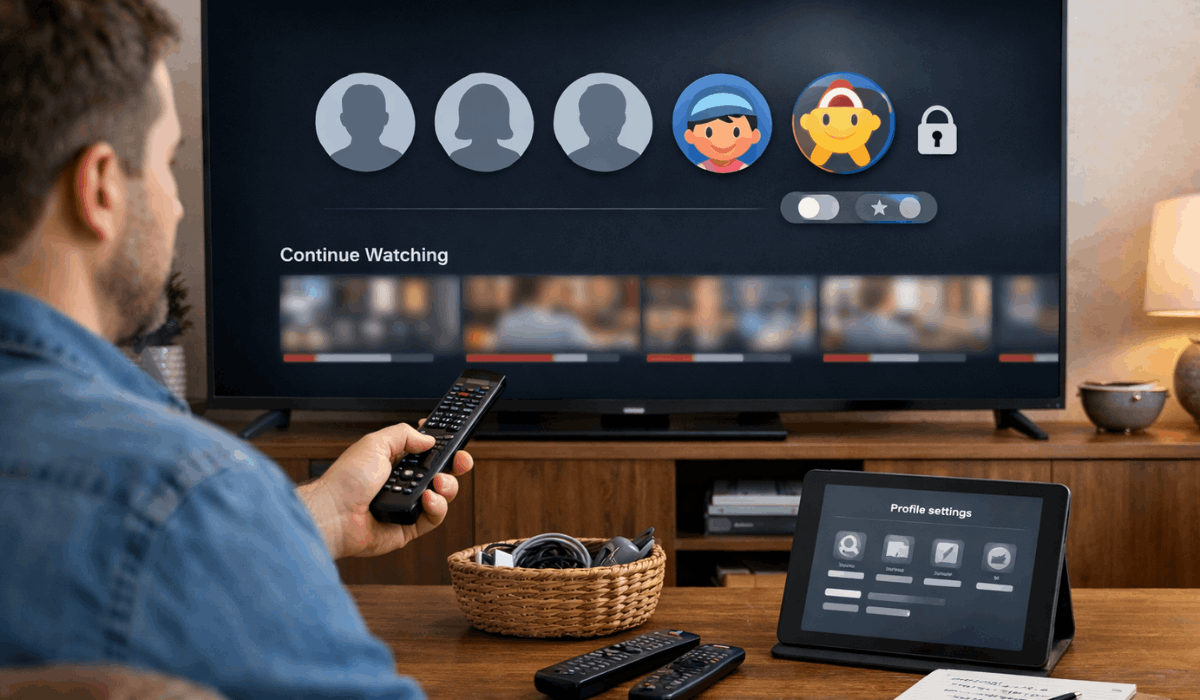
Profiles, Kids Mode, and Household Sorting
Household tools split one account into separate viewing spaces. This keeps recommendations from mixing across different viewers.
- Separate Histories — Each profile keeps its own watch and search history.
- Kids Catalogs — Restricted shelves designed for younger viewers.
- Profile Defaults — Language, subtitles, and playback settings saved per profile.
- PIN Controls — Locks that limit mature content access.
- Personalized Home Rows — Each profile gets different rows and recommendations.
Release Timing and Drop Strategy
Platforms organize content based on how and when episodes are released. This affects how shows appear on the home screen over time.
- Weekly Releases — Episodes surface gradually to support ongoing engagement.
- Full-Season Drops — Entire seasons grouped at once for binge viewing.
- Premiere Boosting — New episodes receive temporary priority placement.
- Countdown Labels — Visual cues that signal upcoming release dates.
- Post-Release Reordering — Layout shifts after a season finishes airing.
Playback Formats and Content Versions
Some titles exist in multiple versions. Platforms separate these formats to avoid confusion.
- Theatrical vs Extended — Different cuts labeled and stored separately.
- Dubbed vs Original — Audio versions organized under one title.
- Standard vs Remastered — Updated versions placed beside originals.
- Episode Edits — Shortened or censored versions shown as alternatives.
- Extras and Bonus Content — Behind-the-scenes material grouped outside the main playback.
Watchlists, Saves, and User-Controlled Organization
Platforms give you tools to organize content yourself. These features support intentional viewing instead of endless scrolling.
- My List Shelves — Saved titles collected in one personal row.
- Manual Reordering — Some platforms allow list sorting by priority.
- Reminder Prompts — Notifications tied to saved or upcoming titles.
- Cross-Profile Lists — Shared lists for household planning.
- Auto-Cleanup Rules — Finished titles removed or deprioritized automatically.
Regional Licensing and Availability Shelves
Libraries differ by country because streaming rights vary. Platforms organize shelves to match what is available in your region.
- Regional Visibility — Titles may not appear if rights are not active locally.
- Local Charts — “Top 10” and trending lists tailored to your country.
- Language-First Shelves — Rows that prioritize local-language discovery.
- Rotating Catalog — Titles move in and out as contracts change.
- Leaving Soon Rows — Sections that warn you before titles expire.
Conclusion: Why This Organization Matters
Streaming platforms organize content to reduce confusion, guide your choices, and keep viewing smooth across devices.
Understanding these systems helps you browse faster, follow stories in the right order, and avoid missing relevant titles.
Use this knowledge the next time you open a streaming app and adjust how you search, save, and watch content more intentionally.